Securing Your Local Environment: 3 Expert Methods to Change Your XAMPP MySQL Root Password

In the current digital landscape, robust security protocols are non-negotiable, extending even to local development environments. A critical security oversight in default installations like XAMPP is the absence of a root password for the MySQL database. This leaves the administrative account with unrestricted access vulnerable to internal or network-level threats.
Establishing and routinely updating a strong root password is the most essential step in securing your development data and preventing the catastrophic loss of hours of work. This guide, structured for technical clarity, explains the necessity of this action and details three distinct methods for changing your XAMPP MySQL password.
Why Securing the XAMPP MySQL Root Account is Critical
Ignoring the default security settings of a local installation can be a significant vulnerability. The reasons to secure your MySQL instance are compelling:
- Default Insecurity: XAMPP intentionally ships with the MySQL "root" user password left empty. This lack of authentication grants anyone with access to the local machine administrative privileges.
- Unrestricted Access: The root user functions as the database super-administrator, possessing unlimited rights to execute all commands, modify system files, and access all databases. An unauthenticated root account is a major security flaw.
- Standard Security Practice: Periodically changing passwords is a fundamental security practice. It mitigates risk, particularly if local passwords are reused on remote systems, offsetting potential compromises.
- Access Restoration: The ability to reset the password is necessary for recovering access if the existing password is forgotten, ensuring uninterrupted workflow on your local WordPress or PHP installations.
Method 1: Command Line (CLI) for Quick Password Reset
Using the XAMPP Shell and the `mysqladmin` utility is typically the quickest and most direct way to change the password. This is also the recommended method if you have forgotten your current root password and need an immediate reset.
- Launch the XAMPP Shell: Open the XAMPP Control Panel and click the Shell button on the right side.
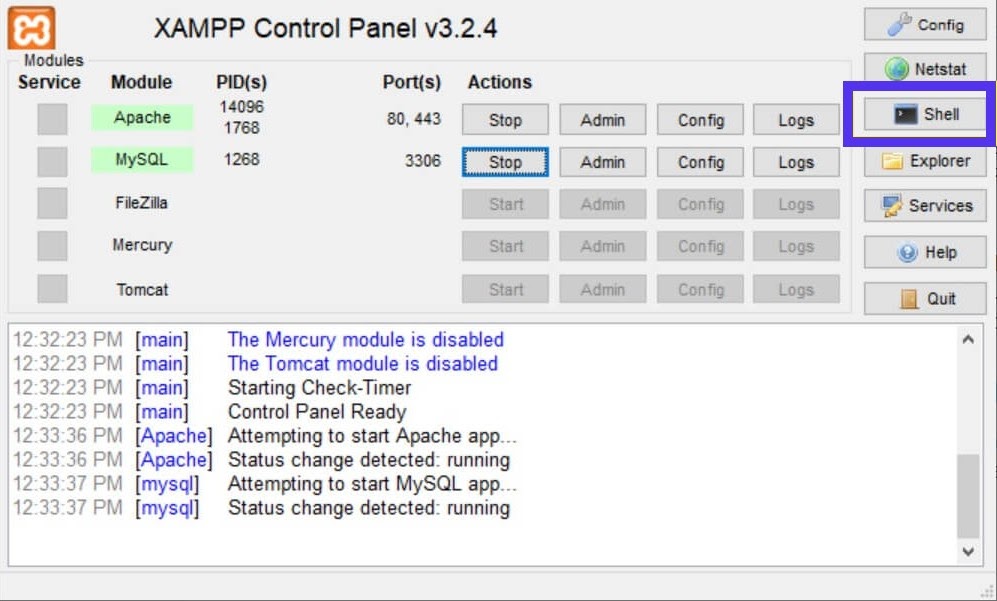
- Execute the Password Command: In the command prompt that opens (which is consistent across Windows and macOS), execute the following command:
mysqladmin -u root password [YourNewPassword]- Confirm the Change: The shell will prompt you to enter and confirm the new password. Once confirmed, the change is instant, and you can close the shell.
Method 2: Graphical User Interface (GUI) via phpMyAdmin
For users who prefer a graphical approach over the command line, phpMyAdmin offers a straightforward interface for managing user accounts.
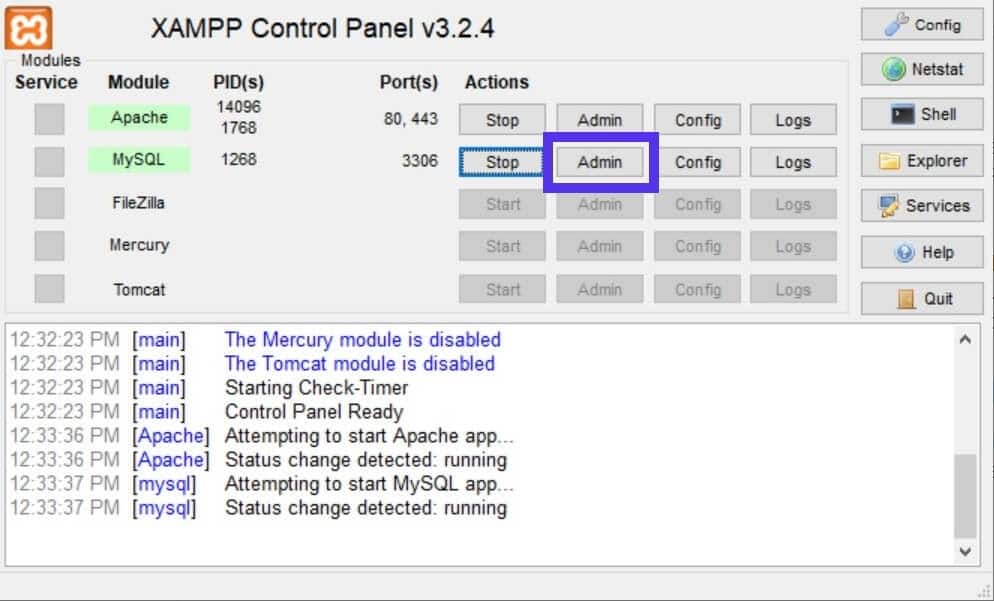
- Access phpMyAdmin: Open the XAMPP Control Panel and click the Admin button located in the *MySQL* row. This will open phpMyAdmin in your default browser.
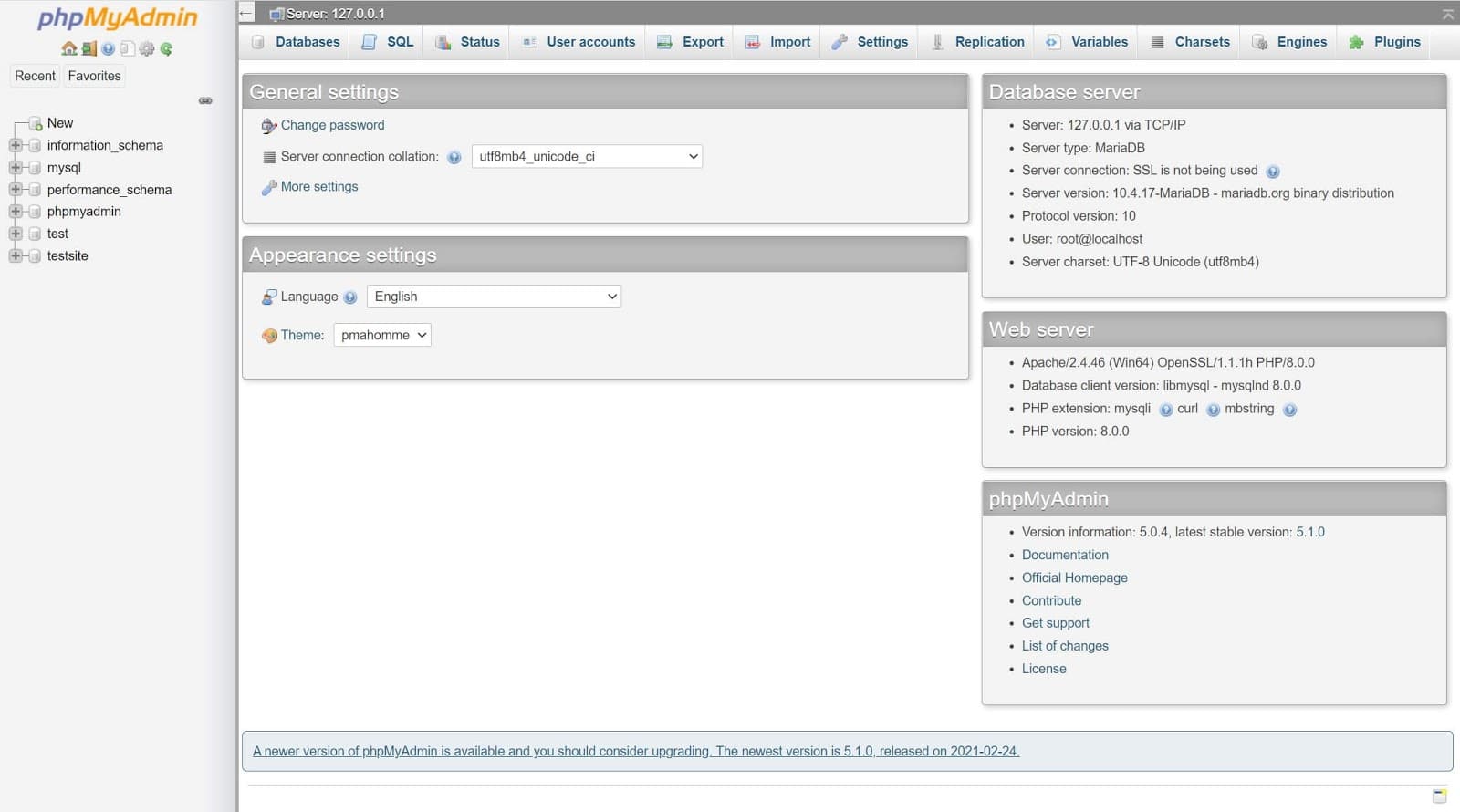
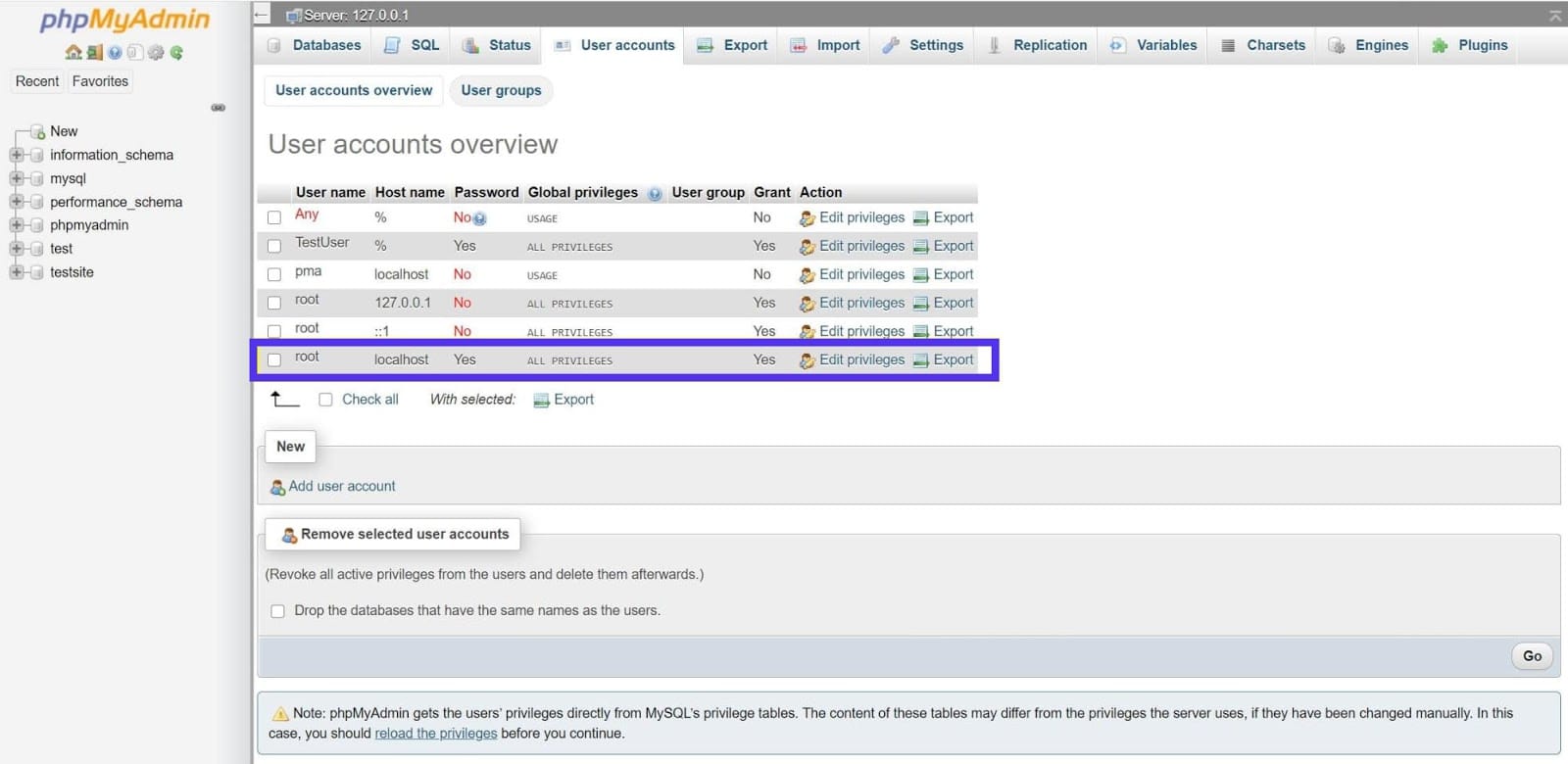
- Navigate to User Accounts: If prompted, log in using the username "root" (and leave the password blank if no previous password was set). Navigate to the User accounts tab in the main menu bar.
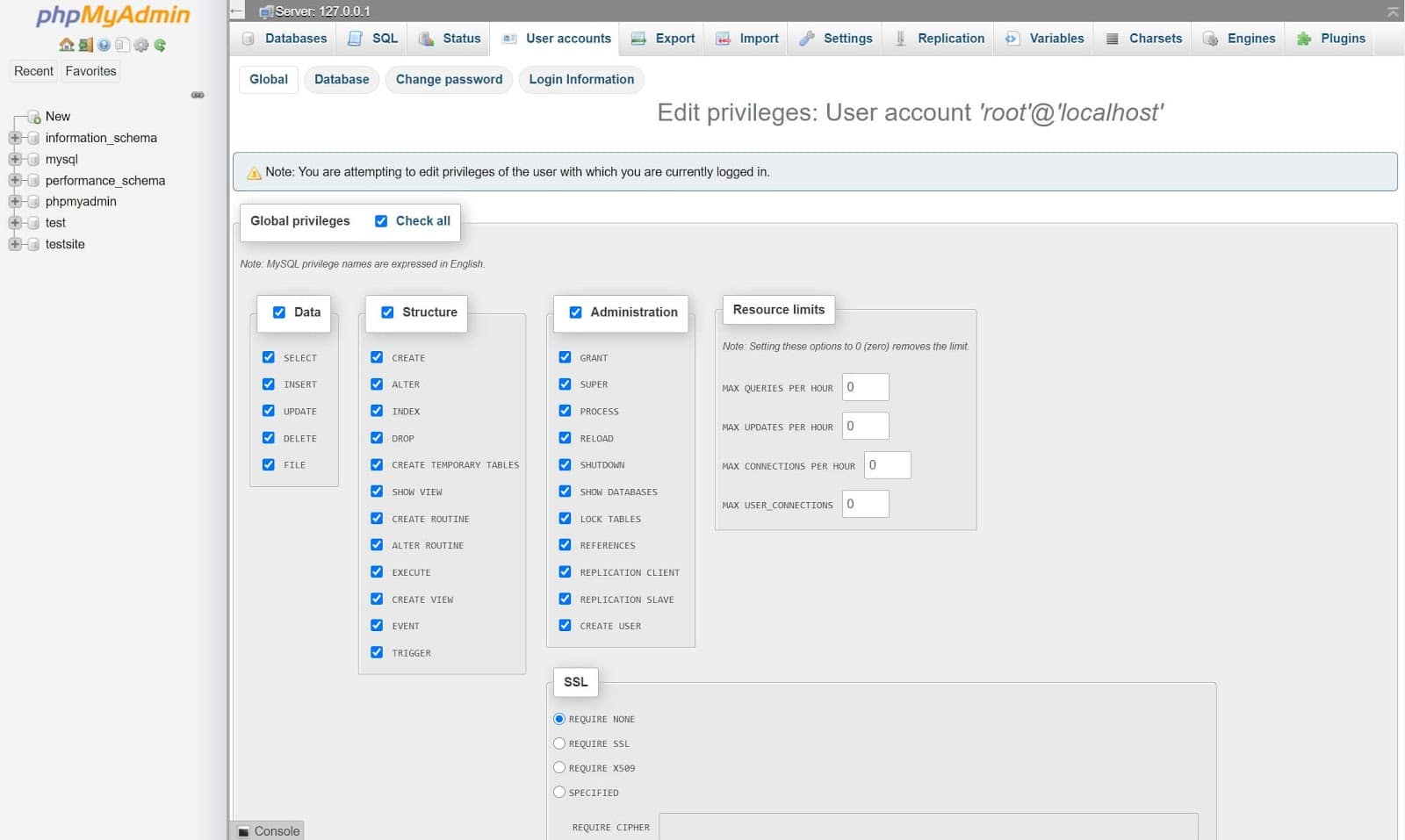
- Edit Root Privileges: Locate the root user for `localhost` in the list. Click on Edit privileges next to this user entry.
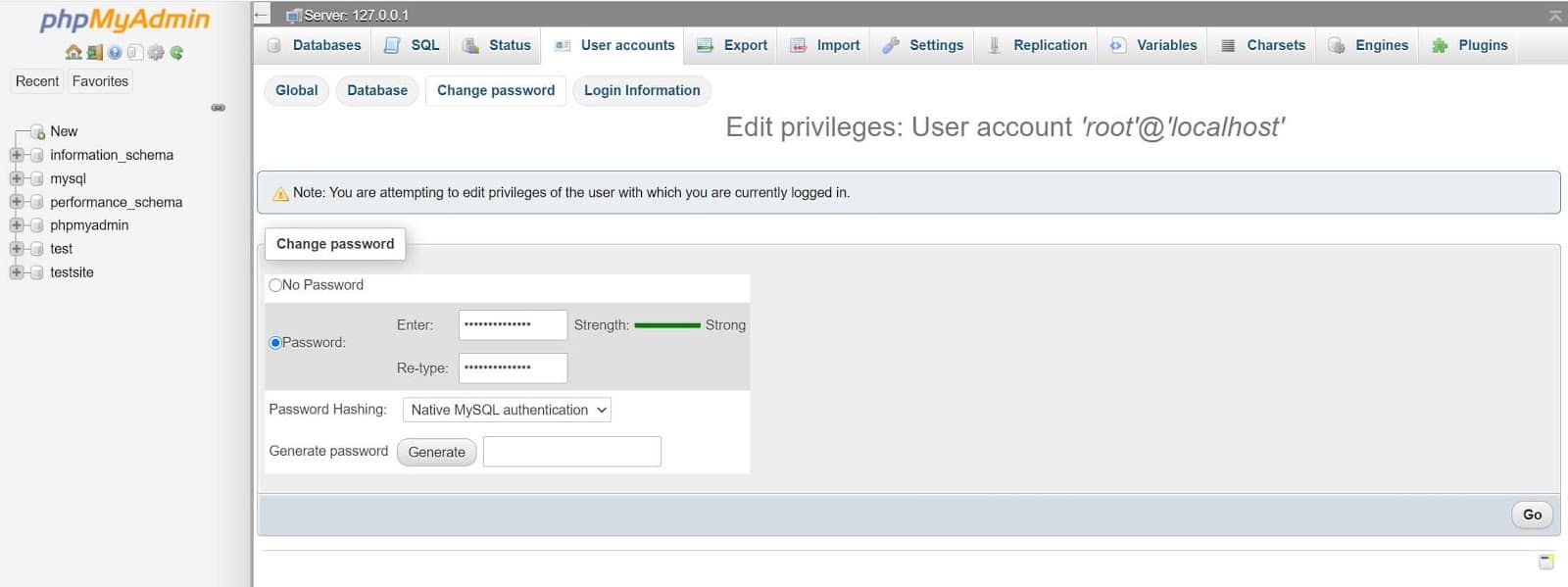
- Change Password: On the privileges page, select the Change password option at the top of the screen.
- Set and Save: Enter your desired new password twice, ensuring it is a complex, secure string. Click the Go button in the bottom-right corner to save and apply the changes to the root account.
Method 3: Direct File Editing for Authentication Errors
This method is specifically useful if you are experiencing authentication errors, where you know the password is correct but local applications (like phpMyAdmin) fail to connect. This involves manually updating the password in the `config.inc.php` file.
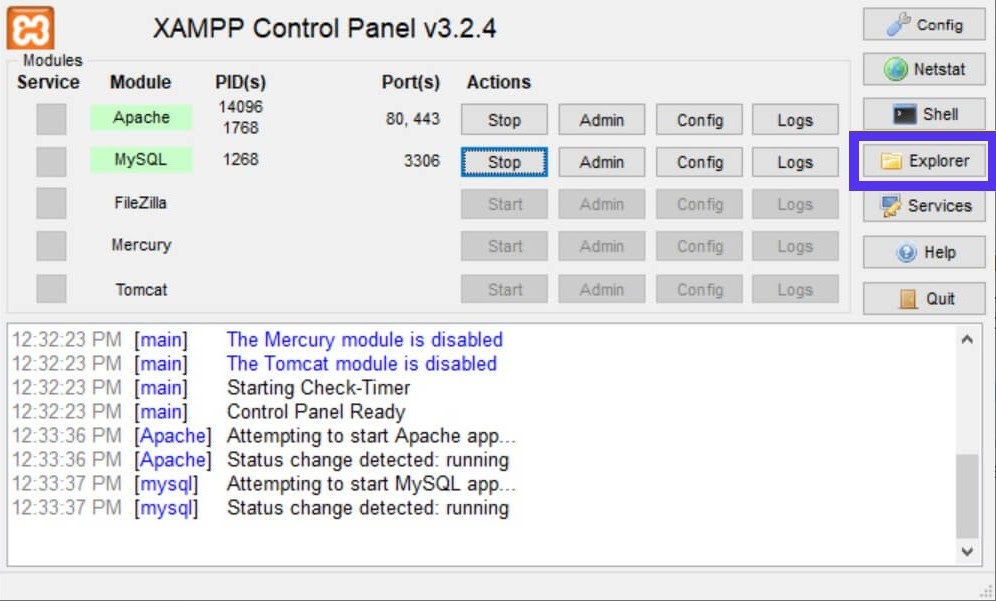
- Open the XAMPP Folder: In the XAMPP Control Panel, click the Explorer button on the right to open the file browser directly to the XAMPP installation directory.
- Locate the Configuration File: Navigate to the `phpMyAdmin` folder and find the configuration file named `config.inc.php`.
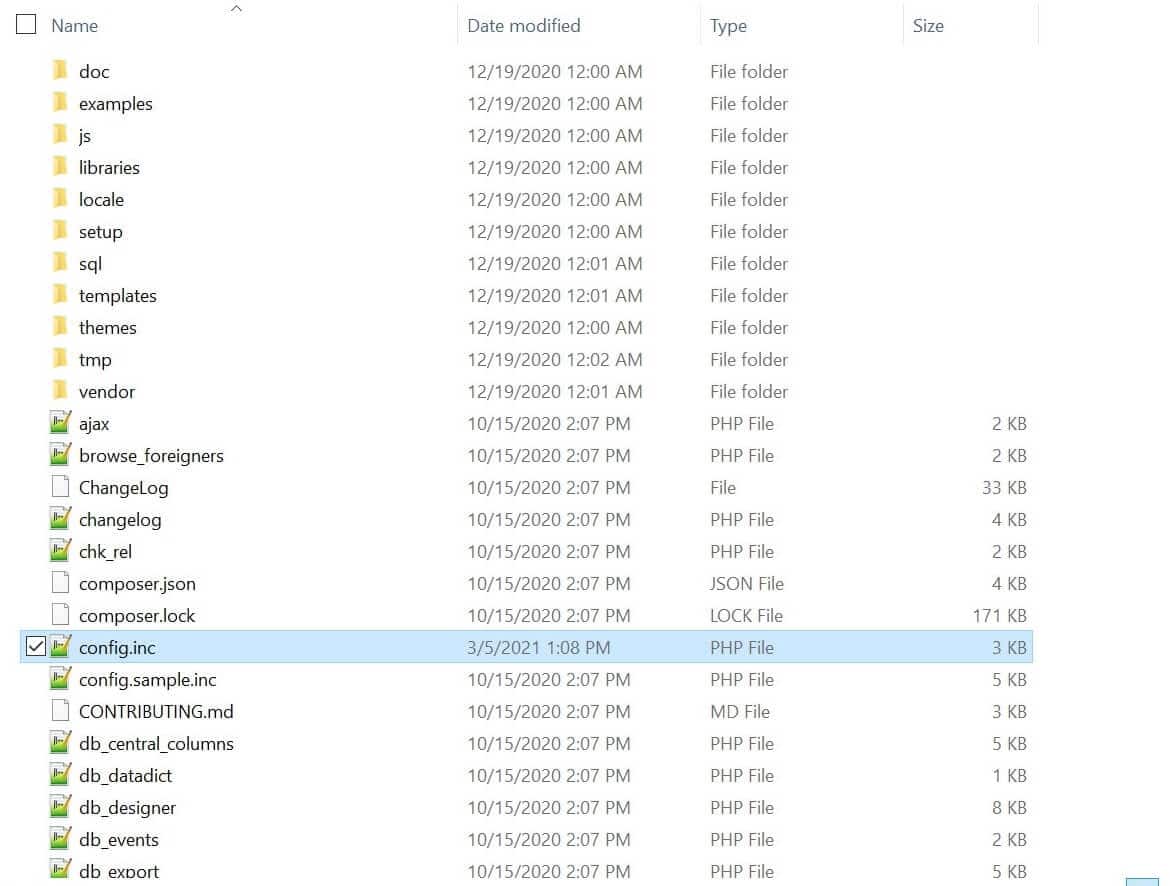
- Edit the Password Line: Open `config.inc.php` with your preferred text editor (e.g., Notepad++, VS Code). Locate the following line (usually around line 29):
$cfg['Servers'][$i]['password'] = 'YourPassword';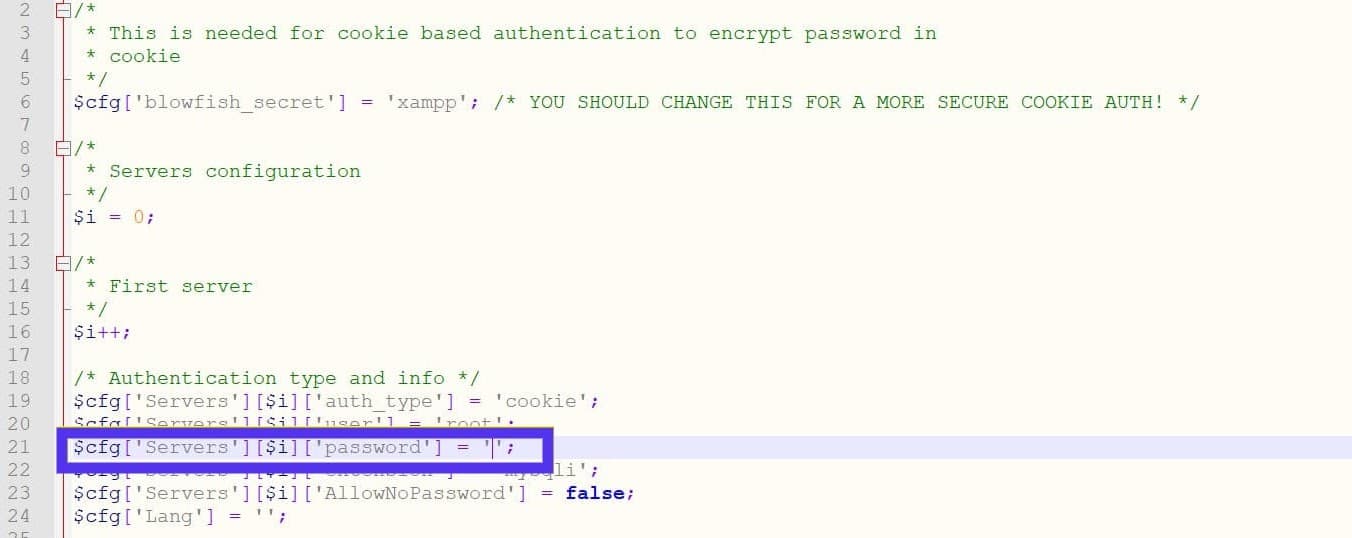
- Update and Save: Replace `'YourPassword'` with the exact new password string (or the known correct password if you are merely correcting an authentication issue) between the single quotes. Save and close the file.
Summary: Enhancing Local Security Post-Installation
Securing your local XAMPP environment by setting and updating the MySQL root password is a crucial, often-overlooked step in local development security. Whether you utilize the speed of the Command Line Interface (`mysqladmin`), the accessibility of phpMyAdmin (GUI), or the directness of file editing, implementing a strong password protects your administrative account from unauthorized access.
Adopting any of these three methods ensures a foundational layer of defense, making your local installation robust and compliant with basic security standards.
Frequently Asked Questions (FAQ) on XAMPP MySQL Security
Q: After changing the password, why am I still unable to access phpMyAdmin?
A: If phpMyAdmin still fails to connect, it means its local configuration file (`config.inc.php`) is using the old password. You must follow Method 3 (Direct File Editing) to manually update the password string in that file to match the new password you set via Method 1 or 2. This synchronizes the application's credentials with the database's actual root password.
Q: Is it necessary to restart XAMPP after changing the MySQL password?
A: Yes, it is highly recommended. After executing a password change, you should typically stop and then restart the MySQL module (and possibly the entire Apache service) in the XAMPP Control Panel. This ensures that the database process reloads and uses the new authentication credentials correctly.
Q: Is XAMPP inherently insecure if used for development?
A: XAMPP is designed for ease of local development, prioritizing speed over security defaults. While not inherently insecure, its default settings (like no root password and open port access) make it unsuitable for public-facing use or even for use on shared local networks without first hardening the security configurations, starting with the root password.
Posting Komentar untuk "Securing Your Local Environment: 3 Expert Methods to Change Your XAMPP MySQL Root Password"